
# Troubleshooting Common Issues with the ATX Cooler 104-0020-1
The ATX Cooler 104-0020-1 is a widely used cooling solution designed to maintain optimal thermal performance in desktop computers. Despite its robust design and reliable operation, users occasionally encounter issues that can affect system stability and performance. This article offers a comprehensive guide to troubleshooting the most common problems associated with the ATX Cooler 104-0020-1, helping you restore your PC’s cooling efficiency with minimal downtime.
---
## Understanding the ATX Cooler 104-0020-1
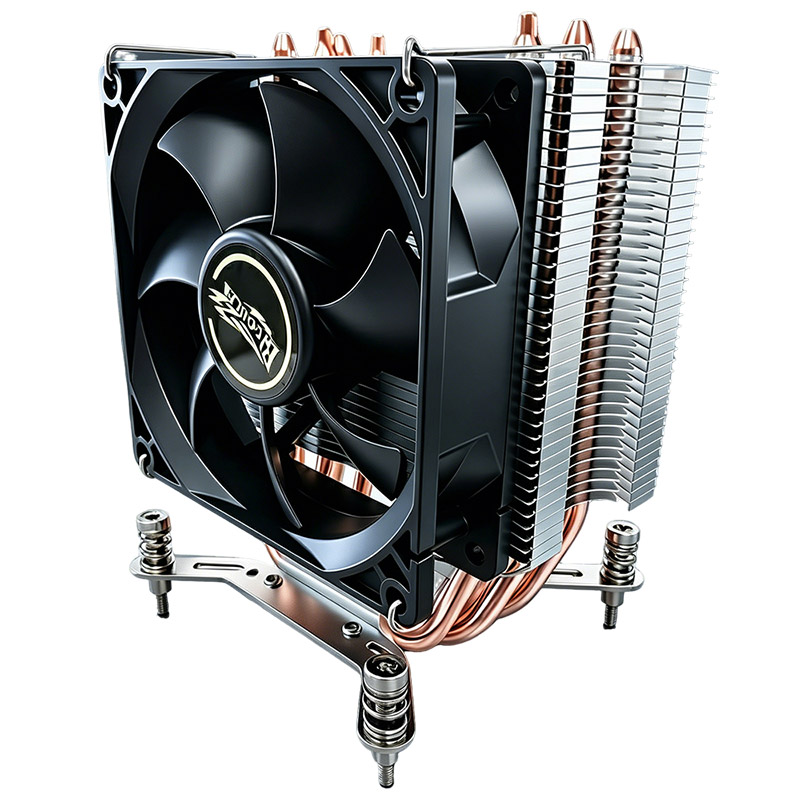
Before diving into troubleshooting, it’s important to understand the basic features and operation of the ATX Cooler 104-0020-1. This cooler is designed for ATX form factor motherboards and is known for its balance of airflow and noise reduction. It typically features:
- A high-performance fan optimized for quiet operation.
- A heatsink designed to dissipate heat effectively from the CPU.
- Compatibility with a range of CPU sockets common in ATX systems.
Despite these features, several factors can lead to cooling issues, including improper installation, dust accumulation, or hardware faults.
---
## Common Issues and Their Troubleshooting Steps
### 1. Fan Not Spinning or Spinning Erratically
**Symptoms:** The fan fails to spin at startup or spins inconsistently, causing CPU temperatures to rise dangerously.
**Causes:**
- Loose or disconnected fan power cable.
- Faulty fan motor or bearing.
- BIOS fan speed settings misconfigured.
- Dust or debris obstructing the fan blades.
**Troubleshooting:**
- **Check Connections:** Ensure the fan’s power connector is securely attached to the motherboard header.
- **Inspect the Fan:** Remove any dust buildup using compressed air. Confirm the fan blades spin freely by hand before powering on.
- **BIOS Settings Reset:** Sometimes fan speed curves are improperly set. Enter BIOS and perform a reset to default values. Adjust fan controls if necessary to ensure the fan spins under load.
- **Test the Fan:** If possible, connect the fan to another header or use a multimeter to check power delivery. Consider replacing the fan if mechanical failure is suspected.
---
### 2. Excessive Noise from the Cooler
**Symptoms:** The ATX Cooler produces loud or unusual noises during operation, which can be distracting and indicate hardware stress.
**Causes:**
- Worn or damaged fan bearings.
- Loose mounting screws causing vibration.
- Dust buildup causing imbalance.
- High fan speeds due to overheating.
**Troubleshooting:**
- **Clean the Cooler:** Use compressed air to clear dust from the fan and heatsink fins. Pay particular attention to the fan hub and blades.
- **Tighten Mounting Screws:** Verify all screws securing the cooler to the motherboard are snug but not overtightened, which could also cause damage.
- **Adjust Fan Speed Curves:** Modify BIOS or software fan profiles to balance cooling and noise, especially under low loads.
- **Replace the Fan:** If noise persists and appears mechanical, replacing the fan may be necessary.
---
### 3. Overheating and Thermal Throttling
**Symptoms:** CPU temperatures reach critical levels, causing the system to throttle performance or shut down unexpectedly.
**Causes:**
- Poor contact between the cooler’s base and the CPU.
- Dried or improperly applied thermal paste.
- Inadequate airflow inside the case.
- Dust-clogged heatsink fins.
**Troubleshooting:**
- **Reapply Thermal Paste:** Carefully remove the cooler, clean off old thermal paste with isopropyl alcohol, and apply a new, thin layer of high-quality thermal paste.
- **Ensure Proper Mounting:** Reinstall the cooler ensuring even pressure and proper alignment over the CPU.
- **Improve Case Airflow:** Check that intake and exhaust fans are functioning and not obstructed. Cable management may help improve airflow.
- **Clean the Cooler:** Dust accumulation reduces heat dissipation; regular cleaning is vital.
---
### 4. System Instability or Random Shutdowns
**Symptoms:** The computer randomly shuts down or restarts, particularly under heavy load.
**Causes:**
- Overheating due to cooler failure.
- Power supply issues affecting fan operation.
- BIOS or firmware bugs impacting fan control.
**Troubleshooting:**
- **Monitor Temperatures:** Use software tools to monitor CPU temperatures and fan speeds in real-time.
- **Test Power Supply:** Verify PSU health and voltage stability.
- **Update BIOS:** Check the motherboard manufacturer’s website for BIOS updates that address fan control or thermal management.
- **Reset BIOS Settings:** Resetting BIOS to defaults can resolve configuration issues affecting cooling.
---
## Best Practices for Maintaining the ATX Cooler 104-0020-1
Preventative maintenance greatly reduces the likelihood of encountering the above problems. Consider the following best practices:
- **Regular Cleaning:** Dust your PC every 3–6 months depending on environment, focusing on fans and heatsinks.
- **Monitor System Health:** Utilize monitoring software to keep an eye on temperatures and fan speeds.
- **Use Quality Thermal Paste:** Invest in reputable thermal compounds and reapply as part of scheduled maintenance.
- **Maintain Optimal Case Airflow:** Ensure intake and exhaust fans are balanced, and cables are neatly routed.
- **Perform Periodic BIOS Updates:** Keep your system firmware up-to-date to benefit from improved hardware compatibility and bug fixes.
---
## Technical Styling Notes for Documentation and Web Content
If you’re documenting this troubleshooting guide on a website or internal wiki, consider applying professional styling practices to enhance readability and user experience. Here are some CSS properties and layout recommendations aligned with modern design principles:
- Use a **page wrapper** with a background color of `#f4f8ff` for a soft, professional appearance.
- Apply `text color #111` for strong contrast and legibility.
- Set `overflow-x: hidden` to prevent horizontal scrolling issues on narrow screens.
- Implement `font-family` choices that are clean and professional, such as `Segoe UI`, `Roboto`, or `Helvetica Neue`.
- Enable font smoothing with `-webkit-font-smoothing: antialiased` and text rendering optimization through `text-rendering: optimizeLegibility` to improve text clarity.
- Use consistent **section padding** of `24px 14px` to provide sufficient whitespace and avoid clutter.
- Define a `.container` class with a `max-width` of `1180px` and center it using `margin: auto` to create a balanced layout.
- For hero sections or headers, use a background color like `#eaf2ff` with a subtle border-bottom (e.g., `1px solid #ccc`) to separate content visually.
- Employ CSS resets or normalize styles (`reset`) to create uniformity across different browsers.
- Control margins and paddings carefully to maintain consistent spacing throughout your content.
Incorporating these styling details ensures your troubleshooting content is not only informative but also visually engaging and easy to navigate.
---
## Conclusion
The ATX Cooler 104-0020-1 is a reliable component crucial to maintaining your desktop’s thermal management. However, like any hardware, it requires proper installation, maintenance, and occasional troubleshooting. By systematically addressing issues such as fan malfunction, noise, overheating, and system instability, you can maximize the lifespan and performance of your cooling solution.
Remember to follow best practices for cleaning and monitoring, and consider adopting professional styling standards when presenting your troubleshooting guides online. Doing so will enhance both usability and professionalism, ultimately benefiting all users relying on the ATX Cooler 104-0020-1 for their system’s stability.
---
By following the guidelines outlined in this article, you can confidently diagnose and resolve common problems with the ATX Cooler 104-0020-1, ensuring your PC remains cool, quiet, and stable under all operating conditions.