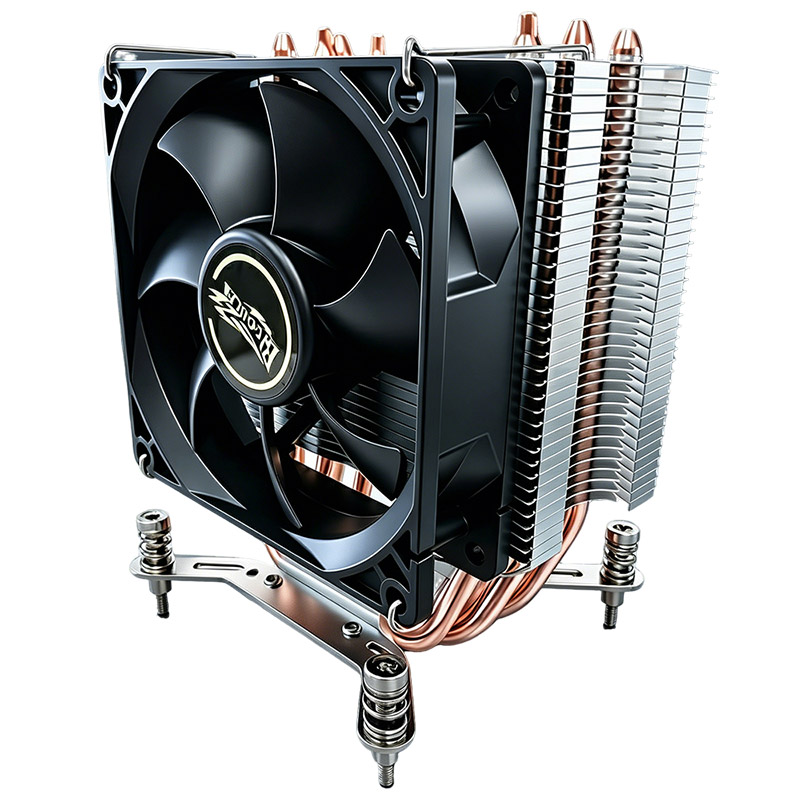

# How to Maintain and Clean Your ATX Cooler 104-0020-1 for Optimal Performance
Maintaining the cooling system of your PC is critical to ensuring longevity, stability, and optimal performance. The **ATX Cooler 104-0020-1**, a popular choice among PC enthusiasts and professionals, offers reliable thermal management, but like any hardware, it requires regular upkeep. In this comprehensive guide, we will explore how to effectively maintain and clean your ATX Cooler 104-0020-1, enhancing its efficiency and preventing potential system failures.
---
## Understanding the Importance of Regular Maintenance
Before diving into the cleaning procedures, it’s essential to understand why maintaining your ATX cooler is vital:
- **Heat Dissipation Efficiency**: Dust, debris, and grime can severely impair heat dissipation by clogging fans and heat sinks.
- **System Stability**: Overheating results in throttling, system instability, or unexpected shutdowns.
- **Longevity of Components**: Maintaining optimal temperatures extends the lifespan of your CPU and motherboard components.
- **Noise Reduction**: Clean fans operate more quietly, reducing ambient noise during heavy workloads.
---
## Preparing for Maintenance: Tools and Precautions
### Essential Tools
To properly clean and maintain your ATX Cooler 104-0020-1, gather the following:
- Compressed air canister
- Microfiber cloth
- Isopropyl alcohol (70% or higher)
- Small brush (anti-static)
- Screwdriver set
- Thermal paste (for reapplication if needed)
- Anti-static wrist strap (recommended)
### Safety Precautions
- **Power Down & Unplug**: Always turn off your PC and unplug it before maintenance.
- **Discharge Static Electricity**: Use an anti-static wrist strap or touch a grounded metal surface to prevent electrostatic discharge.
- **Work in a Well-Lit Area**: Proper lighting aids in spotting dust deposits and prevents accidental damage.
---
## Step-by-Step Guide to Cleaning Your ATX Cooler 104-0020-1
### 1. Accessing the Cooler
Begin by opening your PC case. Most modern cases use screws or quick-release mechanisms. Once opened, locate the ATX Cooler 104-0020-1 mounted over the CPU socket. Note the connections and mounting points.
### 2. Removing the Cooler
Carefully disconnect the fan power connector from the motherboard header. Using the appropriate screwdriver, unscrew the mounting brackets securing the cooler. Gently lift the cooler away from the CPU. Be careful not to damage any surrounding components.
### 3. Removing Old Thermal Paste
If you plan to reapply thermal paste (recommended every 6–12 months), clean the old thermal paste residues:
- Dampen a microfiber cloth with isopropyl alcohol.
- Gently wipe away the old thermal compound from both the CPU heat spreader and the base of the cooler.
- Allow surfaces to dry completely before proceeding.
### 4. Cleaning the Cooler Fan and Heat Sink
- **Dust Removal with Compressed Air**: Hold the fan blades to prevent spinning and blow compressed air through the fan and heat sink fins. Blow from multiple angles to dislodge embedded dust.
- **Brush Cleaning**: For stubborn dust, use a soft anti-static brush to sweep between heat sink fins and fan blades.
- **Wipe Surfaces**: Lightly wipe fan blades and cooler surfaces with a microfiber cloth.
### 5. Inspecting the Fan Bearings
Spin the fan manually; it should rotate smoothly without resistance or grinding noises. If the fan feels rough or noisy, consider lubricating the bearings (if possible) or replacing the fan.
### 6. Reapplying Thermal Paste
Apply a small pea-sized dot of thermal paste onto the center of the CPU heat spreader. When reinstalled, the pressure will spread the paste evenly, ensuring optimal contact.
### 7. Reinstalling the Cooler
Place the cooler back onto the CPU carefully, aligning the mounting holes. Tighten screws evenly in a diagonal pattern to distribute pressure uniformly. Reconnect the fan power cable to the motherboard.
### 8. Final Inspection and Testing
Close your PC case and power on the system. Monitor CPU temperatures via BIOS or software utilities. Temperatures should be lower or consistent compared to before cleaning. Listen for abnormal fan noises.
---
## Additional Tips for Maintaining Optimal Cooler Performance
- **Regular Cleaning Schedule**: Aim to clean your cooler every 3–6 months, depending on your environment.
- **Check Case Airflow**: Ensure your PC case has sufficient airflow. Poor ventilation can cause heat buildup.
- **Replace Fans if Necessary**: High-performance fans may degrade over time. Upgrade if you notice persistent noise or inefficiency.
- **Update BIOS and Firmware**: Sometimes, fan speeds and temperature thresholds are controlled via firmware updates.
---
## Enhancing Your Cooling Setup: Design Considerations
When maintaining your ATX Cooler 104-0020-1, it's also useful to consider overall system design elements that impact cooling effectiveness. Web developers sometimes use CSS properties metaphorically to explain system design, such as:
- **Reset**: Just like resetting CSS styles to a neutral baseline, a proper reset of your PC components (power cycle) ensures stability.
- **Margin & Padding**: Think of these as the physical spacing around components that allow airflow.
- **Box-sizing**: Analogous to how heat is contained or dissipated within the cooler's boundaries.
- **Font-family & Font Smoothing**: Comparable to the smooth operation and fine-tuning of hardware components.
- **Page Wrapper & Container Max-Width (1180px)**: Similar to the enclosure and size constraints of your PC case affecting airflow.
- **Background Color (#f4f8ff) & Text Color (#111)**: Reflecting the contrast and clarity needed for effective monitoring and diagnostics.
- **Overflow-x Hidden**: Like managing “overflow” heat to prevent it from affecting other components.
- **Text Rendering (optimizeLegibility)**: Ensuring clear, precise communication akin to clear signals and efficient data transfer.
- **Section Padding (24px 14px)**: Providing adequate spacing between components to avoid heat buildup.
- **Hero Background (#eaf2ff) & Border-bottom**: Visual elements representing the interface aesthetics, much like the visual cues from RGB lighting or component branding.
Though these analogies are conceptual, they underscore how thoughtful design and maintenance principles apply across disciplines.
---
## Conclusion
The **ATX Cooler 104-0020-1** is a robust solution for PC thermal management, but its performance hinges on regular maintenance and cleaning. Following the step-by-step cleaning process outlined above will ensure your cooler operates efficiently, prolonging the life of your CPU and improving overall system reliability.
By adopting a proactive approach—combining routine inspections, proper cleaning techniques, and system-level optimizations—you can keep your PC running cool and quiet, ready to meet any computational demand with confidence.
---
For any further inquiries or assistance, feel free to consult your cooler’s official manual or reach out to technical support. Remember, a well-maintained PC is the cornerstone of peak performance and durability.