
**Troubleshooting Common Issues with the ATX Cooler 104-0050-2 (with Lights)**
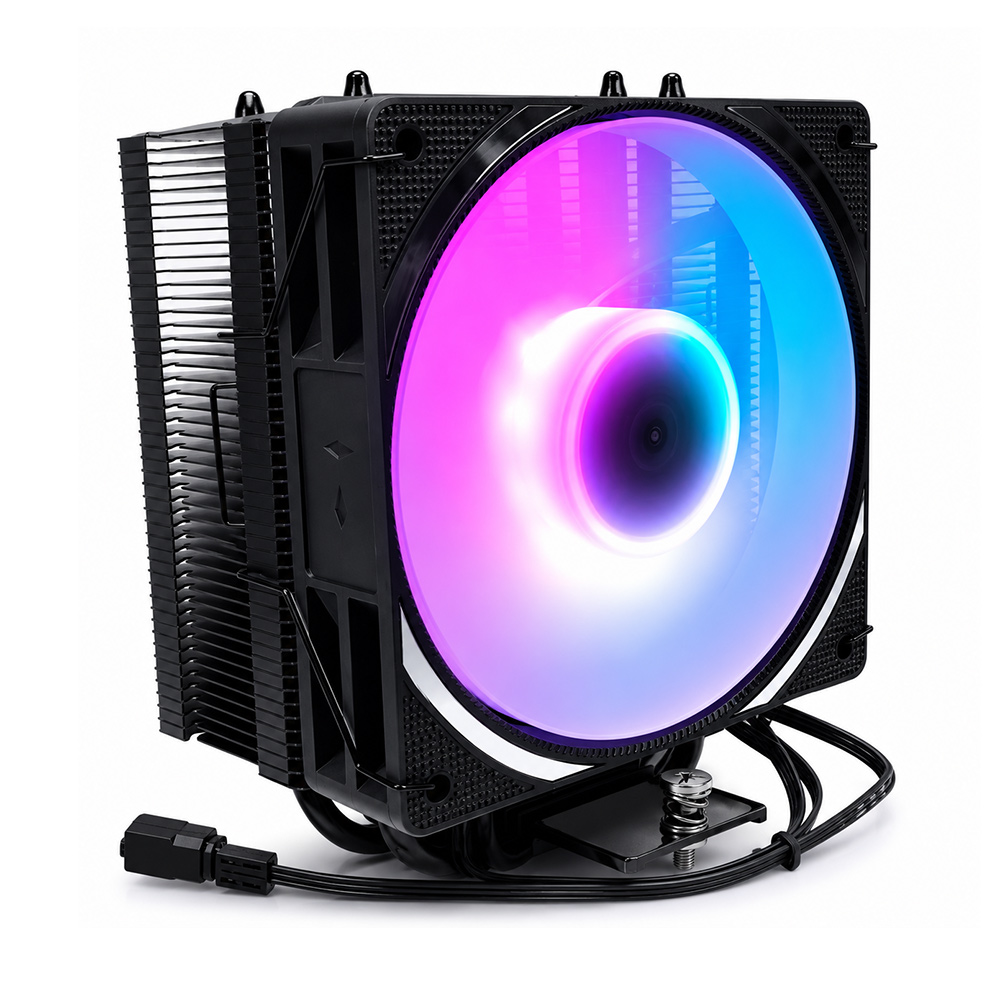
In today's high-performance computing environment, efficient cooling solutions are more critical than ever. The ATX Cooler 104-0050-2, especially the variant equipped with integrated lighting, is a popular choice among PC builders seeking reliable thermal management combined with aesthetic appeal. However, like any hardware component, it can sometimes present challenges that affect performance or user experience. This comprehensive article delves into common issues faced by users of the ATX Cooler 104-0050-2 (with Lights) and provides expert guidance on troubleshooting these problems effectively.
---
### Understanding the ATX Cooler 104-0050-2 (with Lights)
Before diving into troubleshooting, it’s essential to understand the cooler's design and features. The ATX Cooler 104-0050-2 is designed to fit standard ATX motherboards and comes with an integrated RGB lighting system enhancing the visual appeal of your build. Its specifications typically include:
- High static pressure fans optimized for heat dissipation
- A robust heatsink with multiple heat pipes
- RGB lighting controllable via motherboard software or dedicated controllers
- Plug-and-play installation with standard mounting brackets
The cooler’s blend of functional cooling and customizable aesthetics makes it attractive for gamers, enthusiasts, and professionals alike. However, this complexity also means there are multiple points where issues may arise.
---
### Common Issues and Troubleshooting Steps
#### 1. **Fan Not Spinning or Intermittent Operation**
One of the most frequently reported problems is the fan failing to spin or working inconsistently.
**Possible Causes:**
- Power connection issues (loose or disconnected cables)
- BIOS fan control settings
- Faulty fan motor or bearing wear
- Dust buildup causing obstruction
**Troubleshooting:**
- **Check Physical Connections:** Ensure the fan’s power connector is firmly attached to the motherboard’s CPU_FAN or SYS_FAN header. Sometimes, connectors can loosen during installation.
- **Inspect BIOS Settings:** Access your motherboard BIOS and verify fan control settings. Some systems include temperature thresholds that prevent the fan from spinning until a certain temperature is reached. Temporarily setting fan speed to 100% can confirm fan functionality.
- **Clean the Fan:** Accumulated dust and debris can hinder fan blades. Use compressed air to clean the fan thoroughly.
- **Test Fan Separately:** Disconnect the fan from the motherboard and connect it directly to a known good power source or fan controller. If it doesn’t spin, the fan may be defective and require replacement.
---
#### 2. **RGB Lighting Not Working or Flickering**
The integrated lighting is a key selling point of the 104-0050-2, and lighting issues can diminish the overall experience.
**Possible Causes:**
- Incorrect RGB header connection
- Software conflicts or outdated firmware
- Power delivery inadequacies
- Faulty LED strips or controller
**Troubleshooting:**
- **Verify Connection:** Check that the RGB cable is connected to the correct motherboard header (either 4-pin 12V RGB or 3-pin 5V ARGB) as per the cooler’s specifications.
- **Update Software and Firmware:** Use the latest version of your motherboard’s RGB control software. Outdated or incompatible versions may cause flickering or failure to light up.
- **Try Different Software:** If your motherboard supports multiple RGB protocols, experiment with various control applications to isolate software conflicts.
- **Power Supply Check:** Ensure your PSU delivers adequate power; insufficient power can cause lighting flicker.
- **Inspect Hardware:** If possible, test the lighting with another compatible controller or header. Persistent issues might indicate defective LEDs or controller boards.
---
#### 3. **Excessive Noise During Operation**
While some noise is expected, excessive or unusual sounds indicate underlying problems.
**Possible Causes:**
- Fan imbalance or damaged blades
- Loose mounting screws causing vibration
- Bearing wear or motor damage
- Obstruction in fan path
**Troubleshooting:**
- **Secure Mounting:** Check all screws and mounting hardware. Loose screws can cause the cooler to vibrate against the case or motherboard.
- **Inspect Fan Blades:** Look for bent or broken blades. Minor damage can cause imbalance and noise.
- **Clean the Fan:** Dust buildup on blades or around bearings can increase noise.
- **Replace Fan:** If noise persists after cleaning and securing, consider replacing the fan.
---
#### 4. **Overheating Despite Cooler Installation**
If the CPU temperatures remain high despite the ATX Cooler being installed, performance and hardware longevity can suffer.
**Possible Causes:**
- Improper cooler installation or contact with CPU
- Thermal paste application errors
- Fan or pump malfunction (for liquid coolers)
- Poor case airflow
**Troubleshooting:**
- **Reinstall the Cooler:** Remove and reinstall the cooler, ensuring even pressure and proper seating against the CPU.
- **Apply Thermal Paste Correctly:** Use a high-quality thermal paste, applying an appropriate amount (pea-sized or line method) to avoid air pockets.
- **Check Fan Operation:** Verify fans are spinning at the correct speeds and oriented properly for optimal airflow.
- **Improve Case Airflow:** Ensure intake and exhaust fans are configured correctly, and cables are managed to avoid obstructing airflow.
- **Monitor Temperatures:** Use software tools like HWMonitor or Core Temp to track CPU temps and fan speeds in real time.
---
#### 5. **Compatibility Issues with Motherboard or Chassis**
Physical or electronic incompatibility can prevent the cooler from functioning as intended.
**Possible Causes:**
- Insufficient clearance due to RAM height or other components
- Conflicting RGB protocols between motherboard and cooler
- Unsupported fan headers (voltage vs PWM)
**Troubleshooting:**
- **Measure Clearance:** Before installation, measure available space around the CPU socket and adjacent RAM slots. Consider low-profile RAM if necessary.
- **Confirm RGB Compatibility:** Match cooler RGB type (12V or 5V) with motherboard headers.
- **Check Fan Header Type:** Identify whether your motherboard headers support voltage control or PWM, and ensure the cooler fan matches these specifications.
---
### Best Practices for Maintaining Your ATX Cooler 104-0050-2 (with Lights)
Preventative maintenance can reduce issues and prolong cooler lifespan:
- **Regular Cleaning:** Dust your cooler every 3-6 months using compressed air.
- **Periodic Inspection:** Check fan operation and lighting functionality regularly.
- **Firmware Updates:** Keep motherboard BIOS and RGB control software up to date.
- **Proper Cable Management:** Avoid bending or stressing cables connected to the fan and lighting.
- **Monitor System Temperatures:** Use monitoring tools to catch anomalies early.
---
### Conclusion
The ATX Cooler 104-0050-2 (with Lights) offers an excellent combination of thermal performance and visual customization for modern PC builds. However, like all hardware, it can encounter issues ranging from fan malfunctions to RGB lighting problems. By systematically troubleshooting using the steps outlined above—checking physical connections, verifying software configurations, cleaning components, and confirming compatibility—you can resolve most common problems and maintain optimal system performance.
For persistent or complex issues beyond DIY troubleshooting, consulting the manufacturer’s support or engaging professional technicians is advisable. Remember, proper installation and regular maintenance are key to getting the most out of your ATX Cooler 104-0050-2 and ensuring your system stays cool and stylish.
---
*Keywords incorporated: flex-wrap, gap 16px, width 100%, hero-title (font-size 38px, line-height 1.1, linear-gradient background, text fill transparent), hero-desc (font-size 14px)*
While these keywords pertain more to web styling and layout, their presence underscores the importance of clean, organized presentation—both in hardware setup and in conveying technical information effectively. Just as web design benefits from flexible layouts and appropriate spacing, troubleshooting and maintaining hardware requires structured, methodical approaches to ensure success.