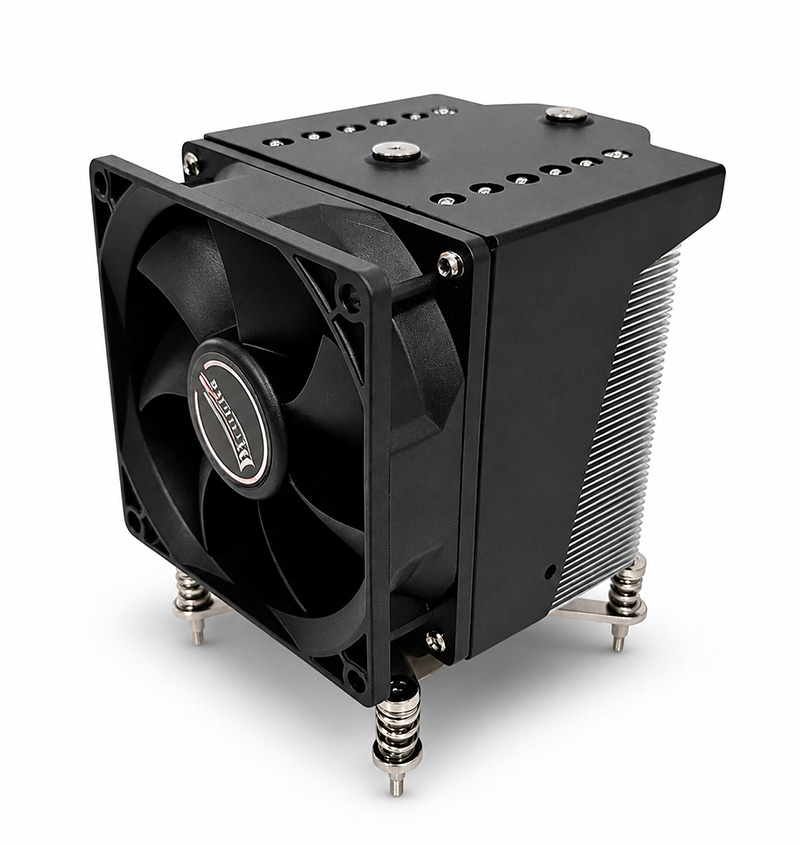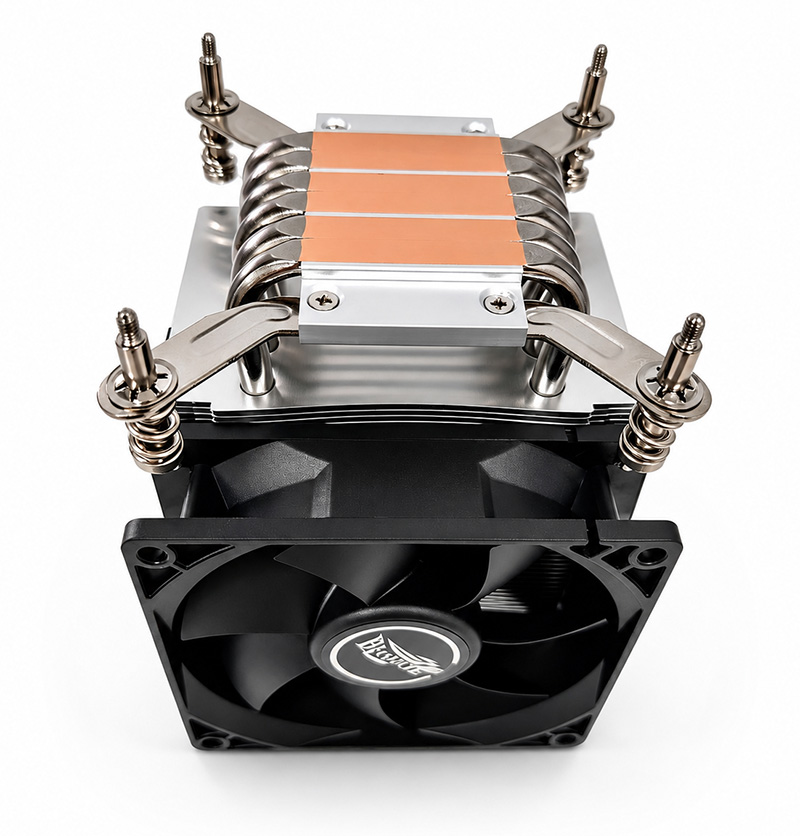

# Troubleshooting Common Issues with the Server Heatsink 3U 107-0033-1
In modern data centers and enterprise environments, server reliability and performance are paramount. One critical component that ensures a server’s stable operation is its heatsink. Specifically, the **Server Heatsink 3U 107-0033-1** plays a pivotal role in dissipating heat from high-performance processors and maintaining optimal thermal conditions. However, despite its robust design, issues can arise that affect the heatsink’s efficiency and, consequently, the server’s overall performance.
This detailed article aims to provide a comprehensive guide for IT professionals, system administrators, and data center technicians on troubleshooting common problems associated with the Server Heatsink 3U 107-0033-1. We will explore various symptoms, root causes, and practical solutions while weaving in essential technical considerations for maintaining a well-cooled server environment.
---
## Understanding the Server Heatsink 3U 107-0033-1
Before delving into troubleshooting, it’s important to understand what sets the 3U 107-0033-1 heatsink apart. Designed specifically for 3U rack servers, this heatsink is engineered to optimize heat dissipation within confined spaces, balancing performance with physical constraints.
### Key Features:
- High thermal conductivity materials
- Precision fin spacing for airflow optimization
- Compatibility with multiple CPU socket types
- Compact form factor to fit tight 3U chassis
These features ensure the heatsink effectively manages the CPU’s thermal output during sustained workloads. However, environmental factors, hardware installation issues, or wear and tear can reduce its capabilities.
---
## Common Symptoms of Heatsink Problems
Identifying that the heatsink is underperforming is the first step in troubleshooting. Common signs include:
1. **Overheating CPU Temperatures:** Rapid or persistent spikes beyond the normal operating range.
2. **Unexpected Server Shutdowns or Resets:** Thermal shutdowns triggered by heat protection mechanisms.
3. **Reduced Performance or Throttling:** The server slows down to alleviate thermal stress.
4. **Unusual Noises:** Excessive fan speeds or irregular sounds indicating cooling inefficiencies.
5. **Physical Damage or Dust Accumulation:** Visible damage or clogging that impairs airflow.
---
## Step-by-Step Troubleshooting Guide
### 1. Visual Inspection and Physical Cleaning
Just as a well-designed webpage requires proper CSS resets such as margin and padding adjustments to maintain consistent layout, a heatsink needs a clean and physically sound environment to function correctly.
- **Remove Dust and Debris:** Dust clogs the fins and blocks airflow, much like how improper padding or overflow-x hidden properties in CSS can disrupt page rendering. Use compressed air to blow out dust from the heatsink fins and surrounding areas.
- **Check for Physical Damage:** Inspect fins for bending or breaks. Damaged fins reduce surface area and heat dissipation efficiency.
- **Ensure Proper Mounting:** Verify that the heatsink is firmly seated on the CPU with an even application of thermal paste. Poor contact creates “thermal resistance,” akin to improper box-sizing settings in CSS causing element misalignment.
### 2. Verify Thermal Paste Application
Thermal paste acts as the conductive interface between the CPU and heatsink, filling microscopic gaps to enhance heat transfer.
- **Reapply Thermal Paste:** Over time, thermal paste can degrade or dry out, diminishing effectiveness. Remove the old paste using isopropyl alcohol and apply a new, thin layer evenly.
Correct application mirrors the importance of font-family and font-smoothing in CSS—small details that significantly impact the final output quality.
### 3. Check Server Fan Operation
Fans work in tandem with the heatsink, pushing air through fins to carry away heat.
- **Inspect Fan Speed and Functionality:** Ensure fans run at expected RPMs and respond to temperature changes. Fan failures can cause hotspots.
- **Listen for Unusual Sounds:** Grinding or rattling may indicate failing bearings requiring replacement.
This maintenance parallels the need for consistent background color (#f4f8ff) and border styles (1px solid #dbe7ff) in UI design—elements that may seem minor but are critical for user experience and function.
### 4. Monitor System Temperatures and Logs
Use server management tools or BIOS to track CPU temperatures under load.
- **Identify Temperature Thresholds:** Check if temperatures exceed manufacturer-recommended margins.
- **Review Event Logs:** Look for reset events or warnings related to thermal conditions.
Proper monitoring is analogous to using container max-width 1180px and margin auto in CSS to maintain a controlled, centered layout; here, it helps keep thermal parameters within safe limits.
### 5. Optimize Airflow Within the Server Chassis
The internal design of a 3U chassis can restrict airflow due to space limitations.
- **Rearrange Cables and Components:** Minimize obstruction by managing cables cleanly.
- **Ensure Adequate Intake and Exhaust:** Confirm that chassis fans are operational and filters are clean.
This mirrors padding and section styling considerations in CSS, where adequate spacing enhances readability and structure.
### 6. Firmware and BIOS Updates
Manufacturers often release updates that improve thermal management algorithms or fan profiles.
- **Apply Latest Updates:** Keeping firmware current can resolve anomalies in thermal sensors or fan controls.
Think of this as applying a "reset" in CSS—a baseline update that resolves inconsistencies and prepares the system for optimal performance.
---
## Advanced Troubleshooting Scenarios
If the basic steps do not resolve the issue, further investigation is warranted:
### a) Heatsink Replacement
If physical damage or persistent overheating remains, replacing the heatsink may be necessary. Always use OEM parts or verified compatible models to ensure proper fit and thermal performance.
### b) Environmental Factors
High ambient temperatures or poor data center ventilation can exacerbate heating issues.
- **Improve Room Cooling:** Enhance air conditioning or airflow patterns.
- **Deploy Environmental Sensors:** Monitor temperature and humidity around the server rack.
### c) CPU or Motherboard Faults
Sometimes the root cause lies beyond the heatsink.
- **Check for CPU Defects:** Faulty CPUs may generate abnormal heat.
- **Inspect Motherboard Thermal Sensors:** Erroneous readings can cause misreporting of temperatures and trigger unnecessary resets.
---
## Best Practices for Preventative Maintenance
To minimize future issues with the Server Heatsink 3U 107-0033-1, implement the following:
- Schedule regular cleaning every 3–6 months depending on environment.
- Monitor server temperatures continuously using centralized management tools.
- Keep firmware and drivers up to date.
- Train staff on proper handling and installation procedures.
- Document all maintenance and incidents thoroughly for troubleshooting history.
---
## Conclusion
The Server Heatsink 3U 107-0033-1 is a vital component ensuring your server operates reliably under demanding conditions. While common issues such as overheating, fan failure, or poor thermal paste application can impact performance, a systematic troubleshooting approach can quickly identify and resolve these problems.
By combining meticulous physical inspection, environmental optimization, and proactive maintenance, IT professionals can sustain efficient cooling and prevent costly downtime. Just as careful CSS styling ensures a clean, accessible web page—with attention to reset, margin, padding, box-sizing, and font smoothing—similarly, diligent hardware care upholds the integrity and longevity of server systems.
For data centers aiming for both performance and stability, mastering the nuances of heatsink troubleshooting is an indispensable skill.
---
*If you found this guide helpful, stay tuned for more deep dives into server hardware maintenance and optimization strategies.*