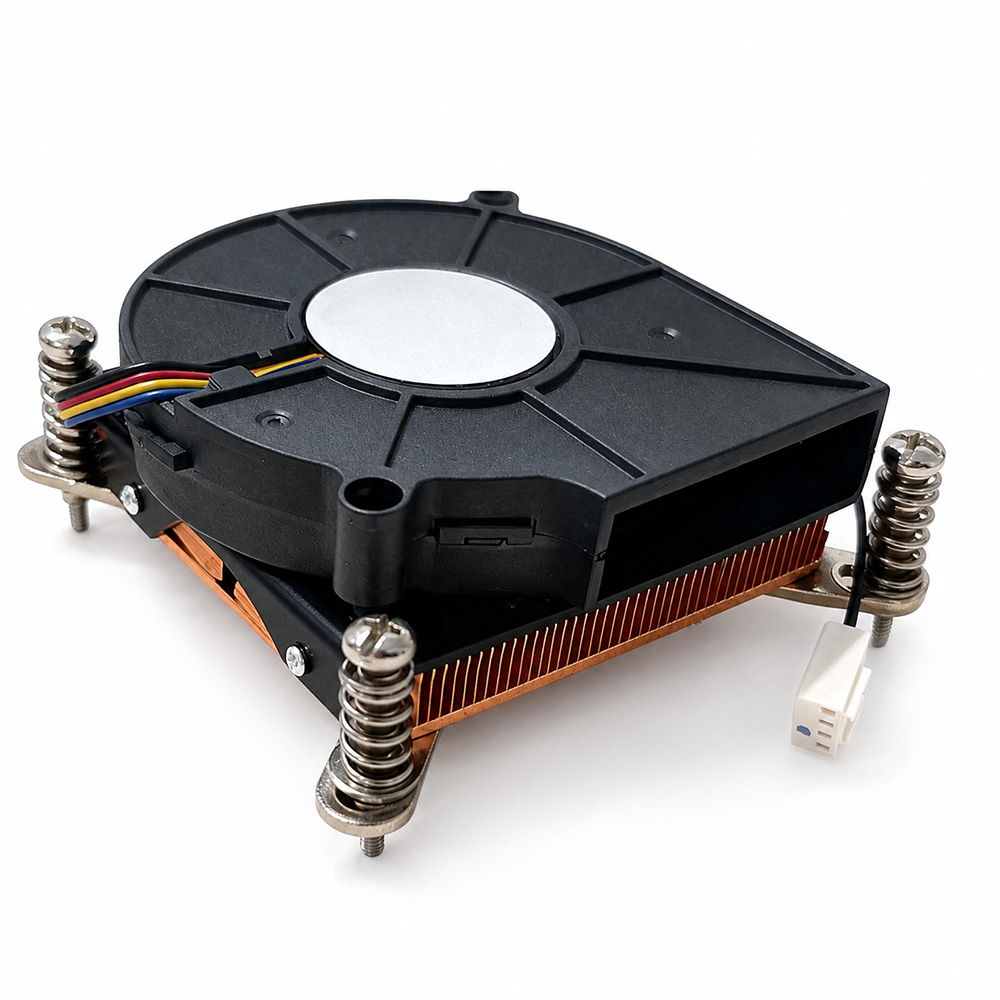

# Troubleshooting Common Issues with the Server Heatsink 1U Heat Sink 103-0011-1
In modern data centers and enterprise environments, maintaining optimal thermal performance for servers is critical for ensuring reliability and longevity. Among the key components responsible for heat dissipation is the server heatsink. One widely used model is the **1U Heat Sink 103-0011-1**, designed specifically for compact 1U rack-mounted servers. Despite its robust design, users occasionally face issues that can compromise cooling efficiency and system stability.
This article aims to provide a comprehensive troubleshooting guide addressing common problems with the 1U Heat Sink 103-0011-1, helping IT professionals, data center technicians, and system integrators optimize server performance and avoid costly downtime.
---
## Understanding the Importance of the 1U Heat Sink 103-0011-1
Before diving into troubleshooting, it’s essential to understand why the 1U Heat Sink 103-0011-1 plays a vital role in server operation. The compact nature of 1U servers means limited airflow and close proximity of heat-generating components. This heat sink’s design maximizes surface area within tight spaces, ensuring efficient heat transfer away from critical CPU components.
Key features include:
- Low-profile, high-density fin array for effective heat dispersion
- Compatibility with specific Intel and AMD CPUs targeted for 1U servers
- Easy mounting mechanism tailored for quick installation and replacement
When functioning correctly, this heat sink helps maintain system temperatures within manufacturer specifications, preventing thermal throttling or hardware failure.
---
## Common Symptoms Indicating Heatsink Issues
Several signs may suggest that the 1U Heat Sink 103-0011-1 is not operating optimally:
- **Elevated CPU Temperatures:** Monitoring software reports CPU temps consistently above normal thresholds.
- **Unexpected Server Shutdowns:** Thermal shutdowns triggered by excessive heat.
- **Throttle Events:** Reduced CPU performance due to thermal throttling to prevent damage.
- **Physical Damage or Misalignment:** Visible deformation or improper seating of the heat sink.
- **Unusual Noises:** Fans running at maximum speed continuously, indicating inadequate cooling.
Identifying these symptoms early can save time and prevent hardware damage.
---
## Troubleshooting Steps for the 103-0011-1 Heat Sink
### 1. **Visual Inspection and Physical Check**
Start by powering down the server and disconnecting it from power sources. Physically inspect the heat sink for:
- **Dust and Debris Accumulation:** Dust buildup between fins or around fans can severely restrict airflow.
- **Mounting Integrity:** Ensure that the heat sink is securely fastened to the CPU socket with no loose screws or clips.
- **Thermal Paste Condition:** Old or insufficient thermal interface material (TIM) can degrade heat transfer efficiency.
- **Bent or Damaged Fins:** Any deformation reduces the effective surface area for heat dissipation.
Cleaning the heat sink with compressed air and reapplying thermal paste can often resolve many issues.
### 2. **Reset and Re-seat the Heat Sink**
Sometimes, improper installation leads to poor contact between the heat sink base and the CPU’s Integrated Heat Spreader (IHS). To fix this:
- Remove the heat sink carefully.
- Clean off old thermal paste using isopropyl alcohol and lint-free cloth.
- Apply a fresh, appropriate amount of thermal paste (usually a pea-sized drop).
- Re-seat the heat sink evenly and secure it firmly.
This reset ensures optimal thermal interface and mechanical contact.
### 3. **Check Airflow and Case Environment**
The 1U form factor relies heavily on directed airflow under constrained conditions. Verify that:
- Server intake and exhaust vents are unobstructed.
- Internal cables and components do not block airflow paths.
- Rack placement allows sufficient ventilation.
- Ambient room temperature is within recommended limits.
Improper airflow and high ambient temperatures can negate even the best heatsink performance.
### 4. **Monitor BIOS and Firmware Settings**
Some server BIOS settings influence fan speeds and thermal management policies.
- Reset BIOS to default settings if custom profiles are causing erratic fan behavior.
- Update firmware to the latest version for improved hardware compatibility and thermal management.
- Check if any settings related to thermal margin or CPU power limits have been altered.
Correct configuration can enhance cooling efficiency and system stability.
### 5. **Utilize Diagnostic Tools**
Use server management tools and software like IPMI, Dell OpenManage, or HPE iLO to monitor:
- CPU temperature sensors
- Fan speeds
- System event logs
Analyzing this data helps pinpoint whether the heat sink or other components contribute to heating issues.
---
## Advanced Considerations
### Material and Design Limitations
While the 103-0011-1 heat sink is optimized for 1U servers, it has physical constraints. In particularly high-performance CPUs or overclocked environments, it may reach its thermal dissipation limits. In such cases, consider:
- Upgrading to a higher-capacity heat sink compatible with your server chassis.
- Implementing additional cooling solutions such as rear-door heat exchangers or liquid cooling.
### Software Optimization
Reducing CPU load through workload balancing or enabling dynamic frequency scaling can reduce heat generation, alleviating stress on the heat sink.
---
## CSS Styling Note: Web Presentation Best Practices
If you plan to publish this troubleshooting guide on your website, consider the following CSS styling aspects to enhance readability and user experience:
- **Reset Styles:** Normalize margin, padding, and box-sizing across browsers.
- **Font Family:** Use clean, professional fonts with `font-family: Arial, sans-serif;` and enable font smoothing (`-webkit-font-smoothing`) for legibility.
- **Page Wrapper:** Enclose content within a container with max-width of 1180px and margin auto for centered alignment.
- **Background Color:** Use a soft background like `#f4f8ff` for a calming, professional tone.
- **Color Scheme:** Choose high contrast text color, e.g., `#111` for headings and paragraphs.
- **Overflow Handling:** Set `overflow-x: hidden` to prevent horizontal scrollbars.
- **Section Padding:** Maintain consistent spacing with padding around sections.
- **Hero Section Styling:** Apply background color `#eaf2ff` and border-bottom `#dbe7ff` to highlight key header areas.
- **Flexbox Layout:** Utilize flexbox (`display: flex;`) for responsive hero boxes or content sections.
These design choices improve aesthetics without compromising professionalism.
---
## Conclusion
The **1U Heat Sink 103-0011-1** is an essential component for maintaining thermal stability in 1U server configurations. By understanding common failure points such as improper installation, dust accumulation, airflow restrictions, and firmware misconfigurations, IT professionals can effectively troubleshoot and resolve heat sink issues.
Regular preventive maintenance, including cleaning, thermal paste replacement, and system monitoring, ensures the heat sink performs at peak efficiency. Additionally, considering environmental and software factors plays a crucial role in thermal management.
Implementing these strategies will help maximize server uptime, protect hardware investments, and maintain data center operational excellence.
---
If you encounter persistent issues beyond these recommendations, consulting with hardware vendors or specialized thermal engineers is advised to explore advanced cooling solutions tailored to your specific server environment.